Bored with the same old rectangular images cluttering your Google Slides? These standard, boxy layouts do more than just limit your design options—they can quickly make your slides feel cramped, predictable, and visually uninspired.
Fortunately, breaking out of the box is incredibly simple. In this quick guide, I’ll walk you through how to make an image a circle in Google Slides—or any shape you prefer—to give your next presentation a fresh, engaging edge. Let’s dive in!
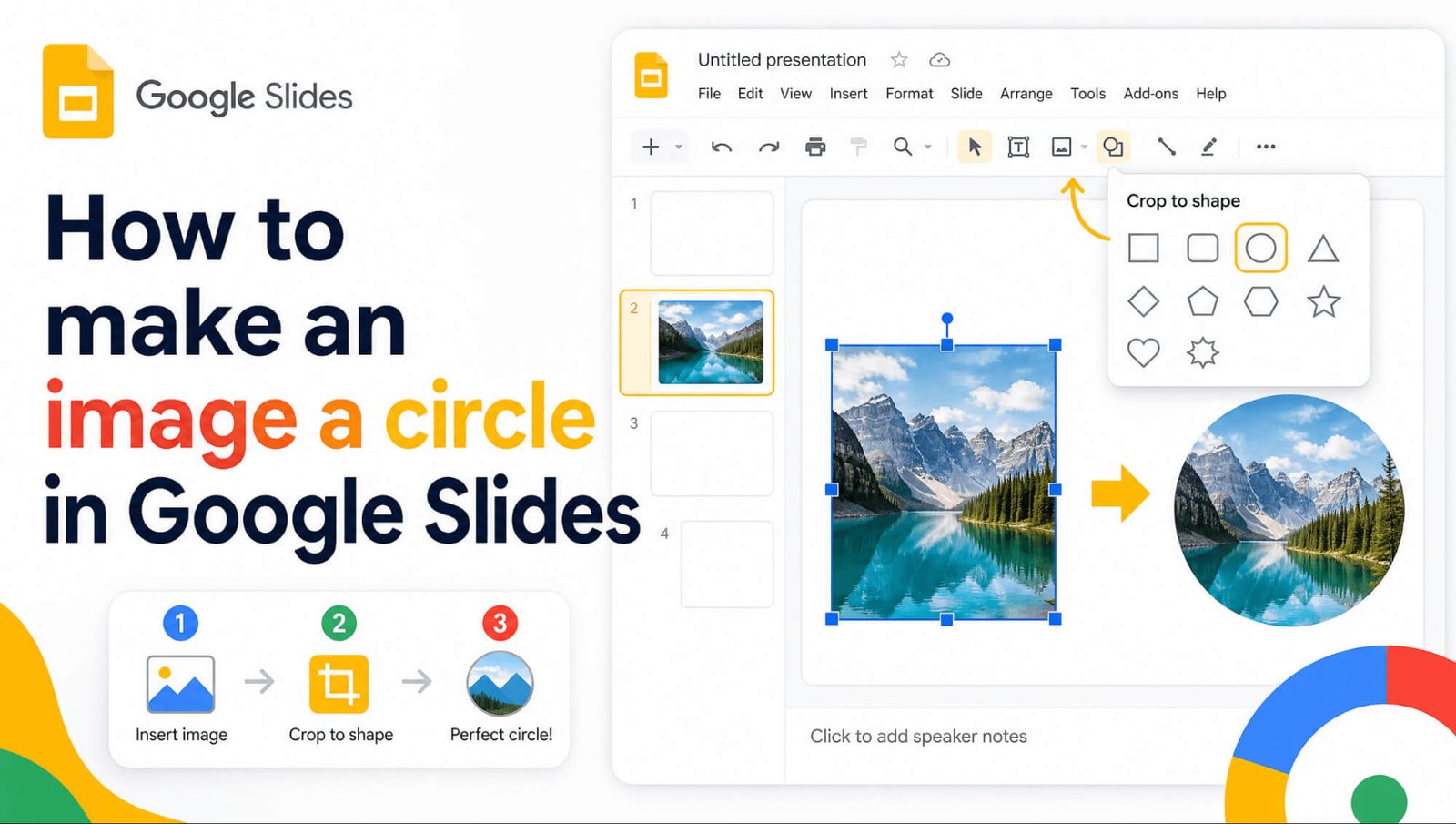
Table of Contents
How to Make an Image a Circle in Google Slides
Let’s explore a hidden gem in Google Slides: the Mask image tool. It’s the perfect tool to quickly mask any image into a sleek circle, while offering plenty of other shape options to elevate your slides.
Uploading Images
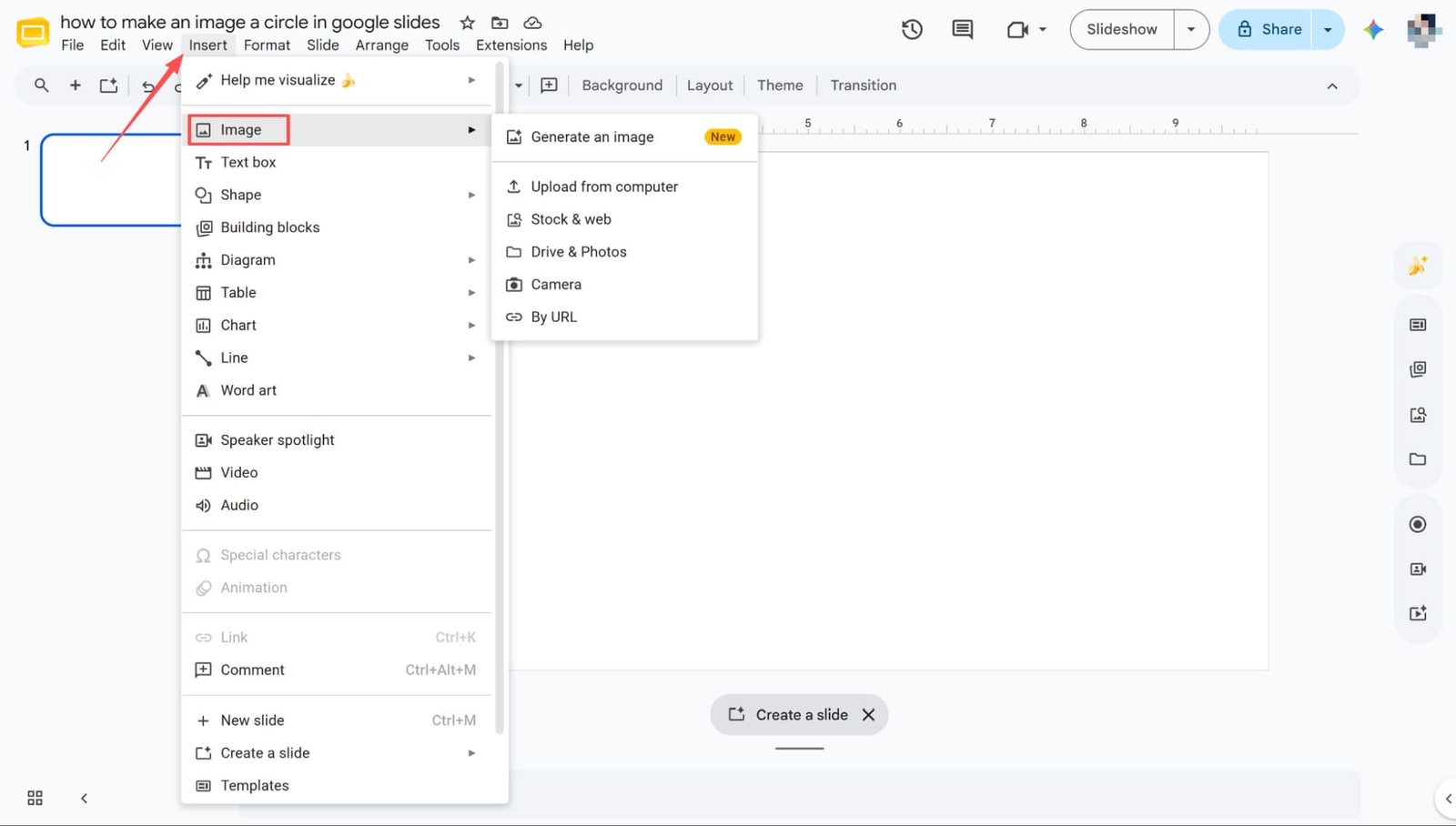
In the menu bar, select Insert, hover over Image, choose your upload method, and successfully upload the image.
Masking an Image into a Circle
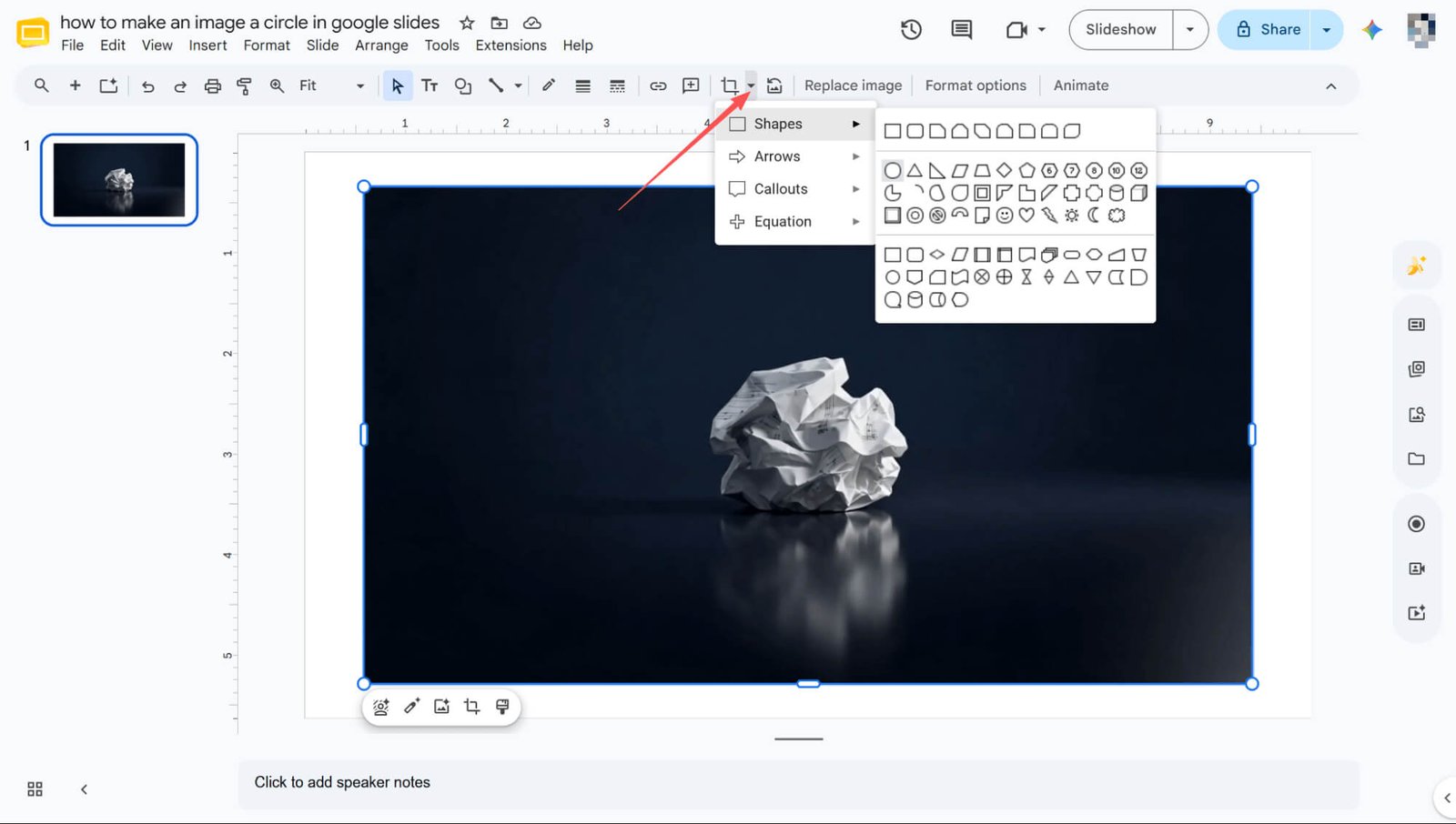
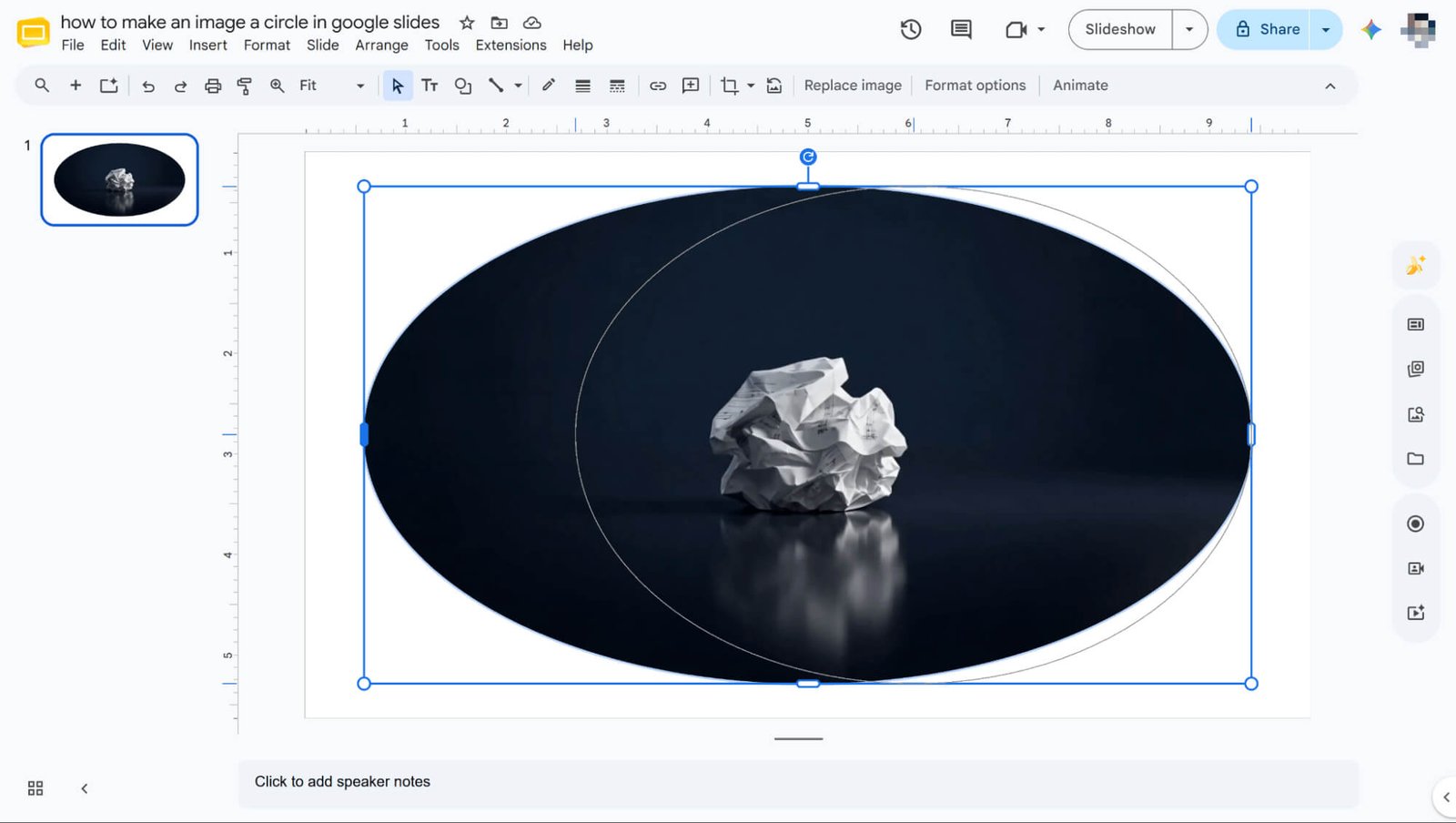
Select the image, click the Mask image icon in the toolbar, and choose Shapes > Circle from the wide variety of available options.
Fine-Tuning the Shape Size
Once the shape is applied, simply drag the resize handles to fine-tune its dimensions.
How to Make an Image a Circle in Google Slides: Key Design Benefits
-
🌟Breaks Grid Monotony
Non-rectangular shapes eliminate rigid layout constraints, introducing dynamic negative space and a modern, magazine-like aesthetic that combats visual fatigue.
-
🌟Enhances Visual Focus
Masking removes distracting backgrounds, instantly directing the audience’s attention to the core subject.
-
🌟Optimizes Layout Integration
Custom shapes allow text to flow naturally around visuals while stripping away unnecessary background elements to maximize slide real estate.
-
🌟Strengthens Brand Cohesion
Standardizing shapes (e.g., matching the exact rounded corners of your UI or logo) gives the entire presentation a premium, tailor-made, and professional feel.
Revolutionizing Slide Creation with HIX AI
Tired of wasting hours manually adjusting image shapes? Meet HIX AI Slides Agent, which transforms your visuals into any custom geometry instantly through simple, text-based prompt instructions.

Match your exact visual identity by selecting a pre-designed template or uploading your own. HIX AI strictly adheres to your template’s color palette and styling—while its built-in slide optimization ensures a seamlessly consistent deck to save you hours of manual effort.
Additionally, you can upload PDFs, Word documents, images, or even HTML files, and the HIX AI PPT converter effortlessly transforms them into complete, presentation-ready decks.
Whether created from scratch or converted from your files, you retain complete flexibility over the final deck. Once your PowerPoint is ready, you can make precise micro-adjustments or rewrite any section simply by typing natural text prompts.
Try HIX AI Slides Agent Now
Conclusion
Now that you’ve mastered masking images into diverse shapes, you’re well on your way to creating more engaging, visually dynamic presentations.
However, if you are handling an image-heavy deck and want to skip the tedious manual effort, we highly recommend leveraging HIX AI. It’s the ultimate shortcut to instantly generating stunning, production-ready slides with zero hassle.
🔒Safe • 💳Versatile Plans Offering • 🌟4.8/5 Rating